
SEO Insights
GSC Connect Skill: Let Codex and AI Agents Read Google Search Console Data
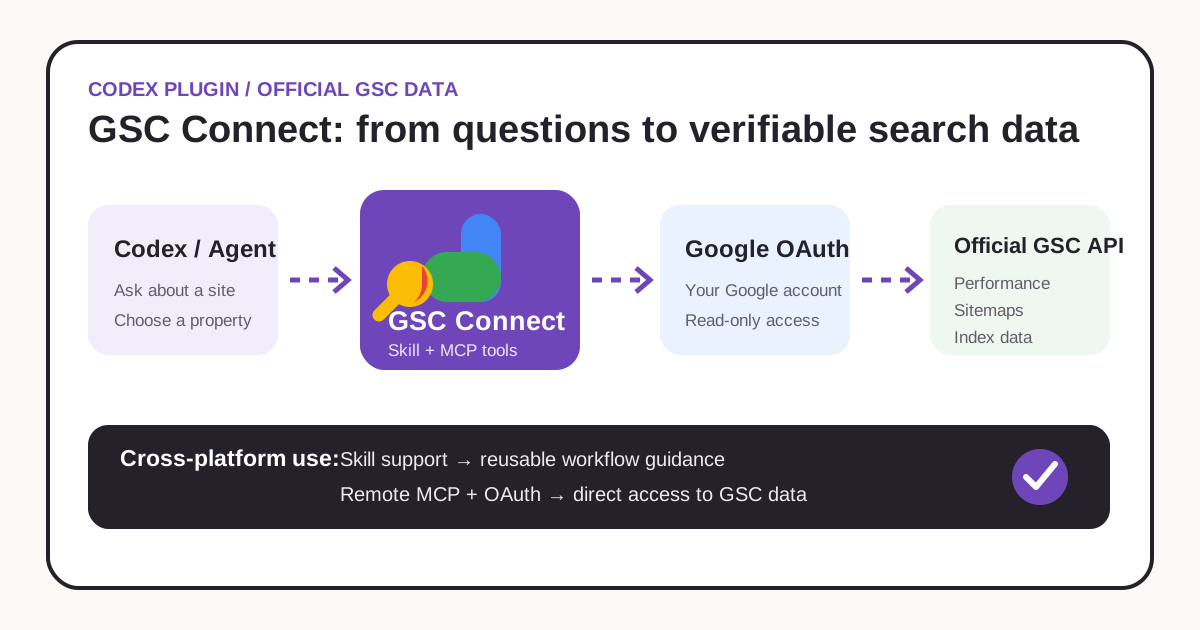
GSC Connect turns an agent question, user authorization, and official Google data into a traceable workflow.
SEO teams often export a CSV from Google Search Console and then move query, page, device, and date data into another tool. That works, but every follow-up question, property change, or date change creates another export and cleanup cycle.
GSC Connect is a Codex Plugin powered by the official Google Search Console API. After you connect your own Google account and choose a property you can access, Codex can retrieve the relevant data for each question instead of relying on screenshots, scraped interfaces, or an aging CSV file.
You can download the complete Codex Plugin, connect the remote MCP server from another compatible agent platform, or install the standalone Skill.
What can GSC Connect do?
All current tools are read-only. They cover common Search Console work:
- List every Search Console property the connected Google account can access while preserving Google's exact
siteUrl. - Query clicks, impressions, CTR, and average position by query, page, date, country, or device.
- Build a recent performance overview with leading queries, pages, countries, and devices.
- Read submitted sitemap status and processing errors.
- Read Google's known indexed version of a URL through the URL Inspection API. This is index inspection, not a live test.
For example, you can ask:
List the GSC properties I can access and let me choose one.
Review the last 28 days and find pages with growing impressions but a weak CTR.
Inspect this URL's Google index status and explain what I should verify next.
The agent organizes the request and interprets the result. You still confirm the property, date range, filters, and final SEO decision.
Why use the official API?
GSC Connect does not simulate a login or scrape the Search Console interface. It uses Google's Search Console API, including Search Analytics for performance data and the official URL Inspection API for indexed URL information.
This gives the workflow three practical advantages:
- The fields have a defined source. Clicks, impressions, CTR, and position do not need to be inferred from a screenshot.
- Google controls access. The connector can only see properties the active Google account is already permitted to access.
- Queries are repeatable. The same dates, dimensions, and filters can be run again when comparing changes.
The API also has limits. Search Analytics may not return every low-volume row, URL Inspection shows Google's known index data rather than a new crawl, and the results alone cannot prove that one change caused a ranking movement. Reports should state those limits.
Authorization uses your own Google account
The public service uses Google OAuth. When you connect, the authorization flow opens Google directly so that you can sign in and approve access with your own account. GSC Connect does not ask you to provide a Google password, OAuth client secret, access token, or refresh token.
The requested Search Console scope is read-only. The tools cannot add or remove properties, submit sitemaps, request indexing, change site content, or transfer ownership.
The production MCP endpoint is https://gsc.yusihk.com/mcp. The English service documentation explains connection fields, tools, privacy, terms, and troubleshooting.
How to install GSC Connect
Choose the complete Plugin, remote MCP connection, or standalone Skill according to your platform. The complete Plugin is recommended for Codex because it packages the Skill, MCP connection, icon, and usage guidance together.
Option 1: install the complete Codex Plugin (recommended)
Download GSC Connect Codex Plugin 0.2.2 and unzip it. Keep the whole gsc-connect-codex-plugin folder, including the hidden .agents/plugins/marketplace.json. It includes an English README.md, Traditional Chinese USAGE.zh-Hant.md and package changelog. Version 0.2.2 identifies the package, not a minimum Codex version.
Installation flow checked 30 October 2026: the OpenAI packaging guide describes local marketplaces and desktop plugin installation without specifying a minimum desktop version for this flow. If the controls below are missing, update your client and check its supported installation flow.
- Open the extracted folder as a project in desktop Codex, then restart the app.
- In the Plugins Directory, choose the GSC Connect local source and install Google Search Console Connect.
- Complete read-only authorization using the Google account with access to your Search Console property, then start a new chat.
- Ask: "List every GSC property I can access and let me choose one." Select Google's exact property URL before specifying the dates and comparison.
With an installed Codex CLI, first check codex plugin marketplace add --help and codex plugin add --help. If supported, replace the path with the extracted folder's actual absolute path:
codex plugin marketplace add /absolute/path/to/gsc-connect-codex-plugin
codex plugin add google-search-console@gsc-connect
You can also finish installation in the desktop Plugins Directory. Adding a marketplace registers a source; installation and Google authorization are separate steps. A successful property-list read confirms that this chat can access data.
Option 2: connect the remote MCP server
If your platform supports remote MCP, Streamable HTTP, and OAuth, add this service URL:
https://gsc.yusihk.com/mcp
Use GSC Connect as the server name and leave authorization fields empty unless your client completes them automatically. The connection opens Google authorization directly. After authorization, call gsc_list_sites before selecting a property for other queries. The platform should never ask for this service's Google client secret.
Option 3: install only the standalone Skill
Download the GSC Connect Skill, extract it, and place the gsc-connect folder in your agent platform's Skills directory. Codex uses this user-level location by default:
~/.agents/skills/gsc-connect
The Skill provides task decomposition, tool selection, and read-only safety guidance. It is not the data connector itself. Private GSC data still requires the MCP URL above and a client that supports OAuth.
Do existing users need to download again?
The hosted authorization update went live on 30 October 2026. Normal token expiry is handled by a refresh attempt; when Google rejects the saved authorization, the service returns a standard authentication challenge so compatible clients can offer Reconnect. The MCP URL remains https://gsc.yusihk.com/mcp, so existing packages using it also receive the server update without reinstalling.
To update the bundled Skill and instructions, extract 0.2.2 into your registered marketplace folder, replacing package files while preserving its structure. Restart Codex and check the installed plugin version. If it remains older, refresh or reinstall this plugin through its plugin interface. Do not manually delete credential files or revoke unrelated Google permissions.
What if authentication expires?
Use Reconnect for this MCP server, complete Google's read-only authorization, and ask for the property list again. If the client does not show a prompt, open this service's connection settings. Prompt wording and timing depend on the client; automatic popups are not guaranteed on every platform.
If reconnection still fails, record the client name, version and exact error message for support. Network failures, rate limits and server OAuth configuration errors do not necessarily require repeated consent. A property-permission error instead needs the correct Google account and property access.
Can other agent platforms use it?
Yes, but the Skill and the MCP connection solve different parts of the workflow.
| Platform capability | Available functionality | Limitation |
|---|---|---|
| Supports Codex Plugins | Skill guidance, MCP tools, and OAuth | Full GSC Connect workflow |
| Supports remote MCP, Streamable HTTP, and OAuth | MCP tools and Google authorization | The platform must correctly complete MCP and OAuth setup |
Supports only SKILL.md or Agent Skills |
Task planning, tool selection, and safety rules | It cannot read GSC data without an MCP client |
| General chat model without tools or connectors | Can reference the public instructions | Cannot sign in or access private Search Console data |
A compatible client also needs protected-resource discovery and the relevant OAuth security behavior. Understanding Skill text alone does not grant data access.
A practical SEO workflow
A reliable GSC review usually follows this order:
- List the available properties and let the user choose the exact one.
- Confirm dates, country, device, and comparison period.
- Read the overview, then narrow the query to abnormal pages or search terms.
- If the issue involves indexing, inspect sitemaps and representative URLs.
- Deliver the API result together with its limits and the next manual checks.
A traffic decline, for example, does not automatically mean weaker content. Separate branded and non-branded queries, desktop and mobile, leading pages and long-tail pages, then check seasonality, site changes, and index signals.
Downloads and support
- Download the GSC Connect Codex Plugin
- Download the standalone GSC Connect Skill
- Remote MCP:
https://gsc.yusihk.com/mcp - English documentation:
https://gsc.yusihk.com/docs - Service email:
services@yusihk.com
For installation, authorization, or property-selection problems, contact YUSIHK with the client name, error message, and reproduction steps. Do not send a Google password, OAuth token, or client secret.